Getting started
Orbit is free to start. Once you've created your account, set it up in four steps:
- 1Create your free account at app.inorbit.one, no credit card required.
- 2Connect Google Calendar in Settings for two-way event sync, and use Orbit's built-in inbox to email contacts and see every reply on their timeline.
- 3Add people: create a contact by hand, import a CSV, or save prospects straight from LinkedIn with the Chrome extension.
- 4Install the Chrome extension so any LinkedIn profile is one click from becoming a contact.
Contacts
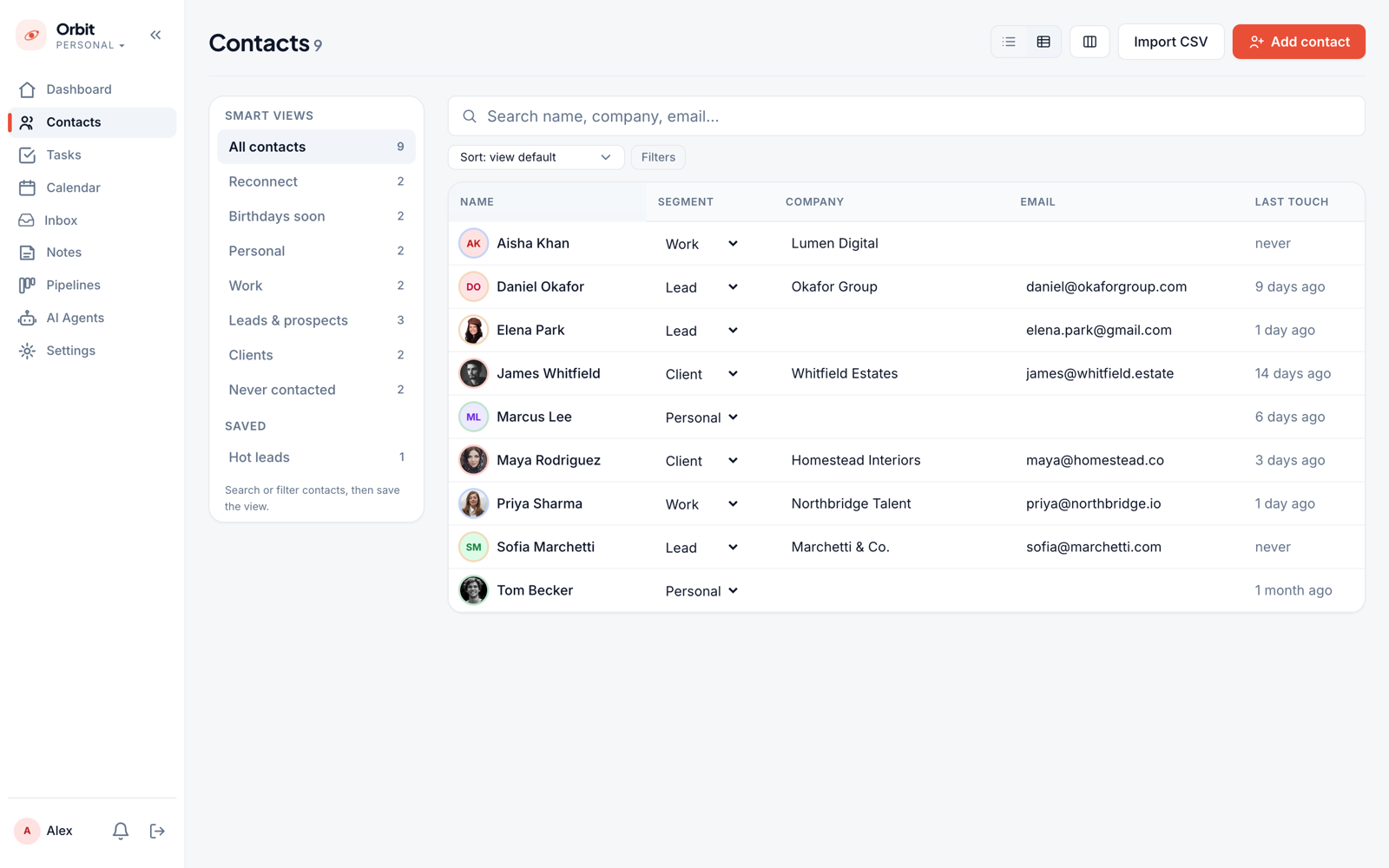
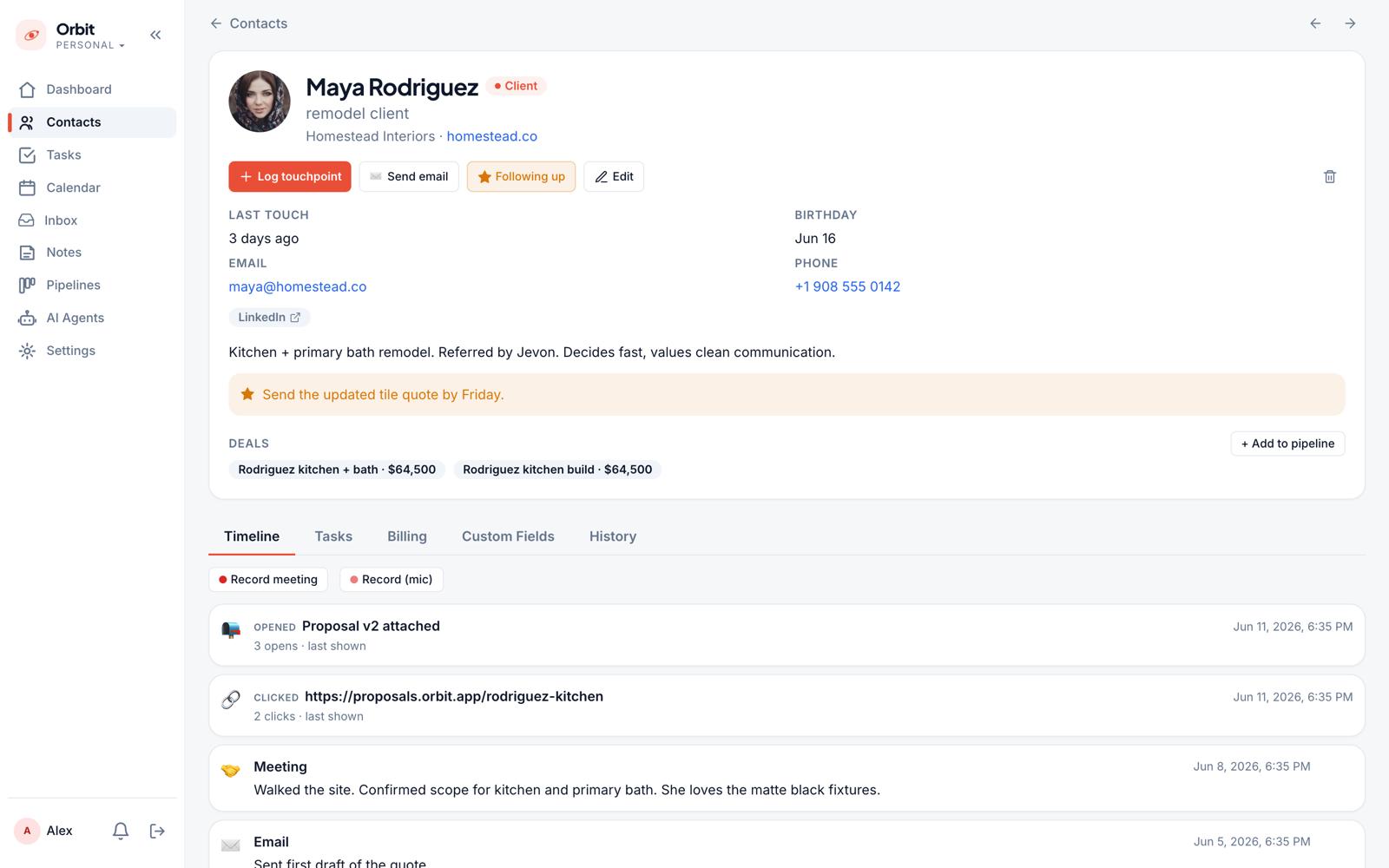
Everyone you track is a contact. Each one carries a segment (Personal, Work, Lead/Prospect, Client), company, links, tags, and custom fields you define. Two things worth setting early:
- 1Set a contact's timezone: Orbit then shows their current local time on their profile (and in the pipeline), so you never reach out at 3am.
- 2Flag anyone you owe a reply with Follow up: it keeps them from slipping.
Pipelines & deals
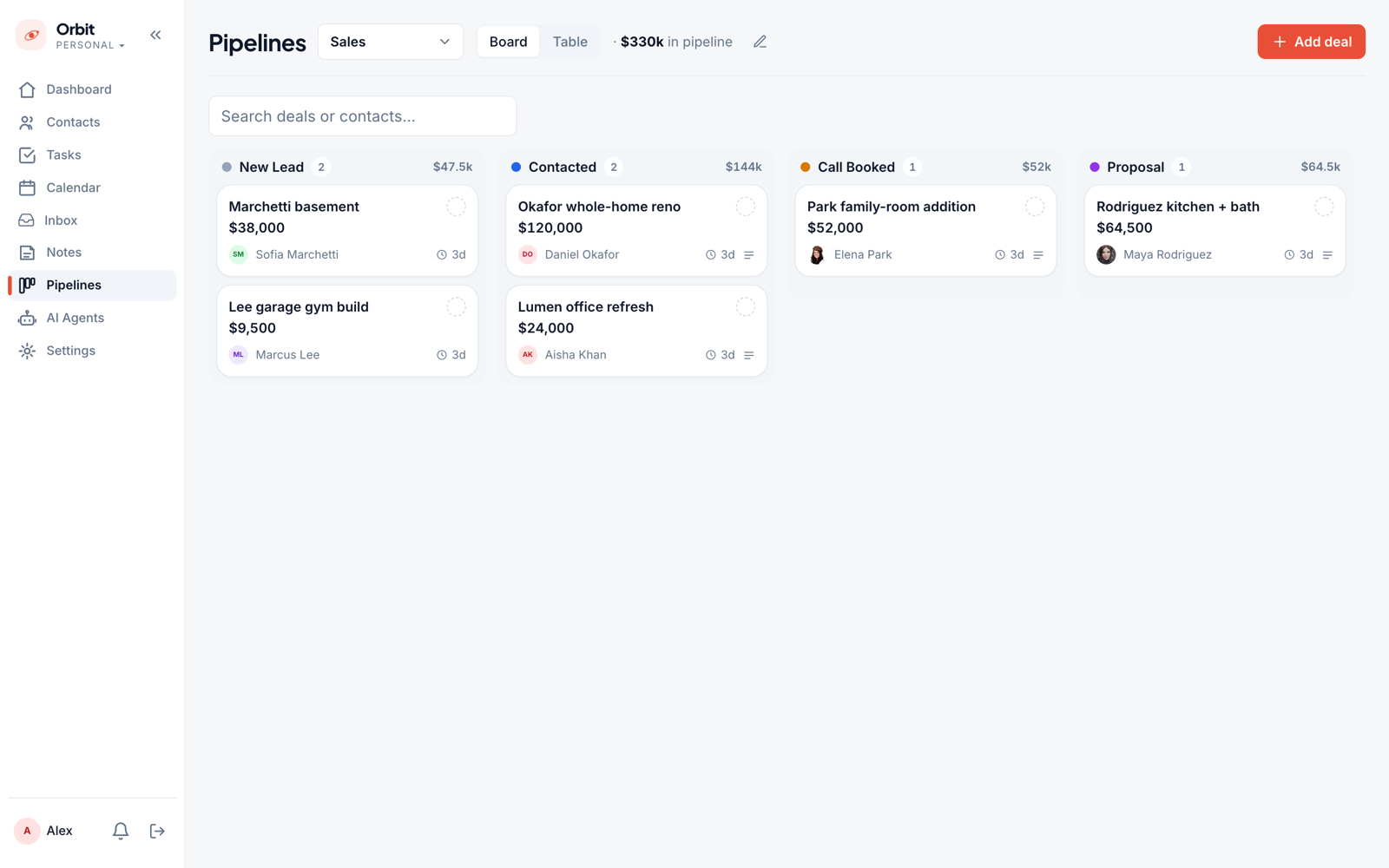
A pipeline is a visual board of deals by stage. Build the stages you actually use (Lead → Contacted → Proposal → Won, or your own), drag deals between them, and open a deal to set its value, notes, and owner. Each card shows the linked contact, so you always know who's behind the number.
Tasks (GTD)
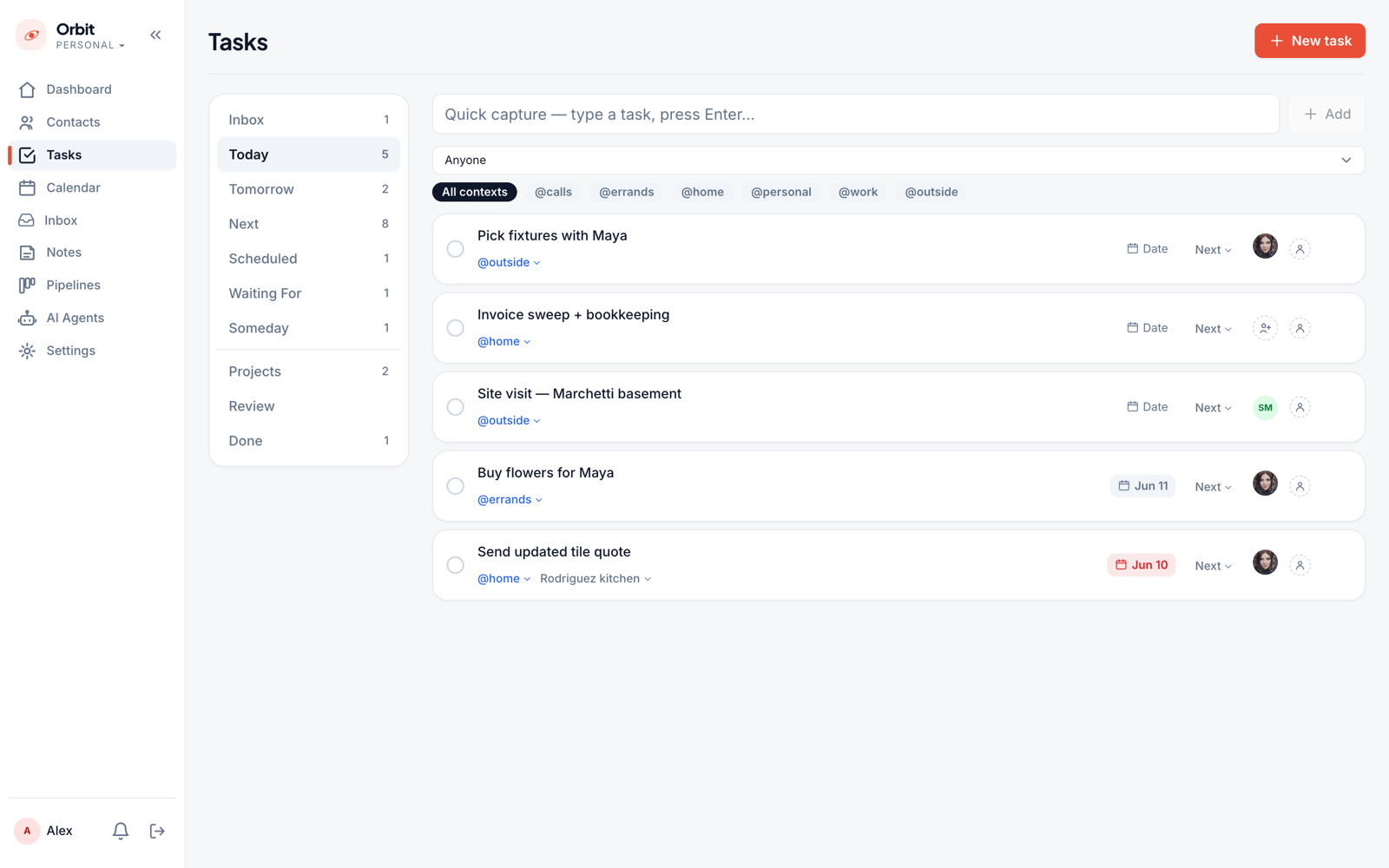
Orbit's task system follows Getting Things Done. Capture anything to your Inbox, then clarify items into Next and Today with defer (start) and due dates, and group related work under Projects. Give a task a time and it appears on your calendar; leave it untimed and it waits in the list.
Calendar
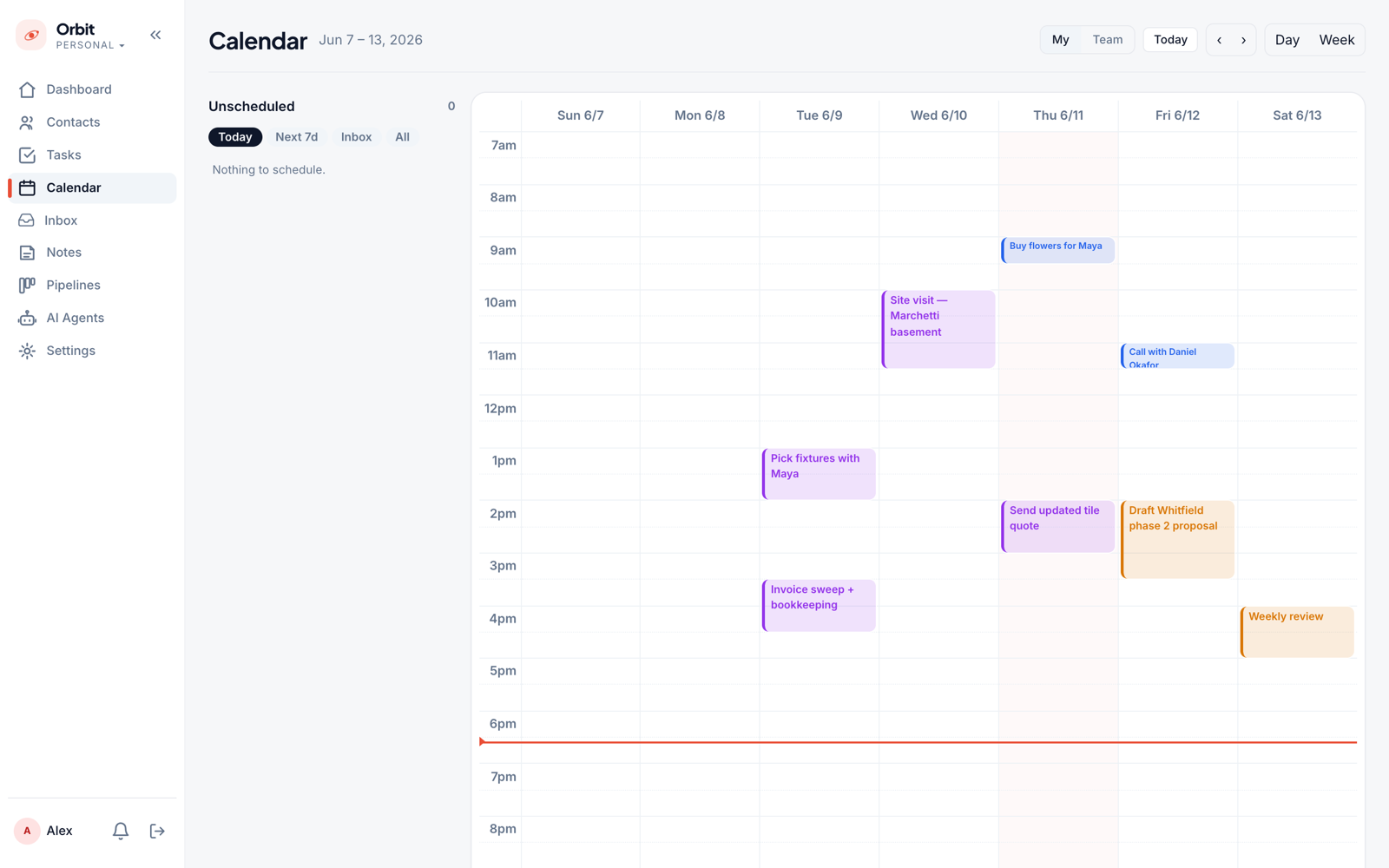
In Orbit a calendar event is simply a task with a scheduled time, so your to-dos and your day live in one place. The calendar two-way syncs with Google Calendar, and you can add guests to an event by name or email: Orbit sends the real invite.
Email & the contact timeline
Every email with a contact shows on their timeline, alongside notes and deal changes. Send from your built-in Orbit inbox with open and click tracking, images, and GIFs. Reply or Reply-all right from the timeline, it threads correctly and quotes the original. The dashboard's Recent replies widget surfaces the latest people who wrote you, newest first.
Looks great: can you send the revised scope by Friday?
Notes
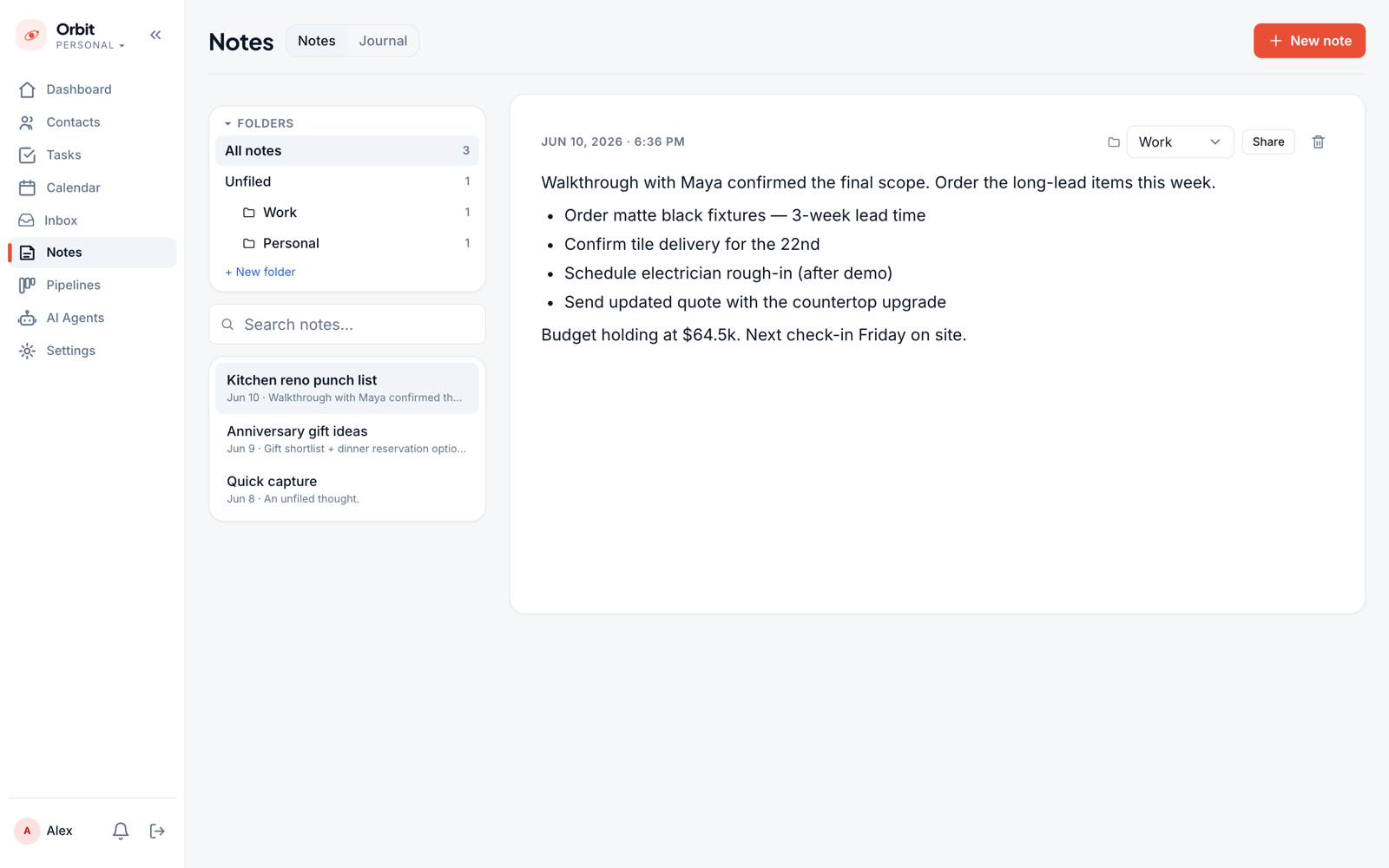
Notes are long-form and organized in folders. @mention a contact in a note and it links straight to their timeline, so meeting notes and ideas stay attached to the people they're about.
AI assistant
Talk to Orbit in plain language and it does the busywork: create tasks, schedule events, add or update contacts. Even set a contact's timezone from a location ("she's in Utah" → Mountain time). It always tells you what it did, so you can correct it.
Automations
When a deal enters a stage you choose, Orbit can automatically send a templated email from your Orbit inbox (with an optional delay, attachments, and merge fields). Set it up in Settings → Automation. Great for instant lead follow-up or stage-based nurture.
Forms & landing pages
Build a lead-capture form (bind each field to a contact field, and route a submission straight into a pipeline stage), and a landing page to host it at a public URL. Submissions create or merge a contact, capture the source/UTM, optionally open a deal, and notify you.
Dashboard
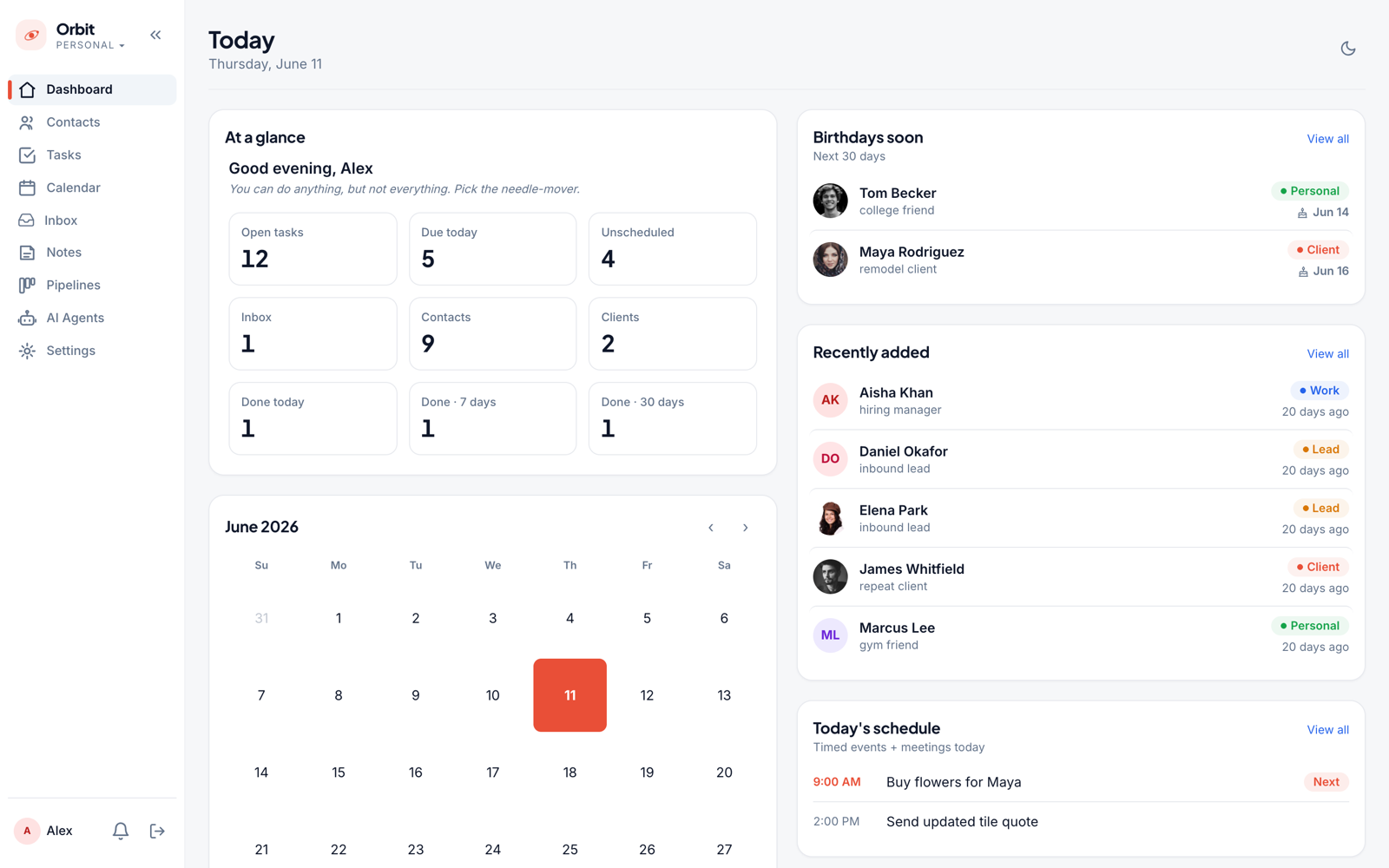
The dashboard is your at-a-glance start: open tasks, due today, contacts and clients, a month calendar, your pipeline, today's tasks, and the Recent-replies widget. Everything that needs you, in one screen.
Chrome extension
On any LinkedIn profile, click the Orbit extension to save the person as a contact (name, photo, and role) without leaving the page. It's the fastest way to turn a connection into someone you'll actually follow up with.
Five ways to run Orbit
Mix and match: here are five common setups, each chaining the pieces above.
1 · Solo consultant or founder
Keep warm leads and active clients close.
- 1Save the person (extension or by hand); set their segment + timezone.
- 2Flag anyone you owe a reply with Follow up.
- 3Reply from their timeline the moment they write.
- 4Let the assistant book the call and add the task.
- 5Use the dashboard’s Recent replies as your daily "who’s waiting on me".
2 · Sales pipeline & closing
Move deals to won without dropping anyone.
- 1Build a pipeline with your real stages.
- 2Drop deals in; an automation fires the intro email when a deal hits "New lead".
- 3Work the board and reply from the timeline.
- 4Watch Recent replies for responses, then drag to Won.
3 · Networking & job hunt
Stay on people’s radar over months.
- 1Save recruiters and peers from LinkedIn with the extension.
- 2Tag them ("recruiter", "2026 search") and log each touchpoint as a note.
- 3Set a follow-up cadence so no thread goes cold.
- 4Their local time keeps your outreach well-timed.
4 · Personal relationships
Keep the people who matter close.
- 1Put friends and family in the Personal segment; add birthdays.
- 2Flag anyone you haven’t spoken to in a while.
- 3Fire off a quick note or email when they cross your mind.
- 4Orbit nudges you before a relationship fades.
5 · Tasks & calendar only (GTD)
Use Orbit as a clean productivity tool: no CRM required.
- 1Capture everything to your Inbox, or just tell the assistant.
- 2Clarify into Next / Today with defer and due dates.
- 3Group related work under Projects.
- 4Schedule items onto the calendar (synced with Google).
- 5Hide the tabs you don’t use in Settings → Preferences.